
Showing posts with label IPad. Show all posts
Top Downloaded Game For IPad
Yes the game is the most downloaded game apps in IPad. Believe me, it's fun to play this game.

Angry Bird is the most downloaded application for IPad. It costs $4.99 to get the game.

Some Facts About The Game
Sold more than 6.5 million downloads on the App Store.
The more expensive iPad version of the game, which sells for $4.99, has been bought more than 200,000 times.
The free Lite version of Angry Birds has been downloaded more than 11 million times.

Youtube videos relating to the game have topped six million views and more than 77% of players grab updates when they're made available.
Developed by Finland-based Rovio Mobile.
Published By Clickgamer Media Chillingo
Read More
Watch The Story Behind The Birds Getting Angry
Tag :
Anderoid,
Angry Birds,
App Store,
Apple,
Chillingo,
Download,
Finland,
Fun and Facts,
Game,
IPad,
IPhone,
launch,
Launchpad,
Mobile Camera,
Mobile Game,
Rovio,
Top Article,
Video,
Wikipedia,
you tube
Free Applications For Your Tablets
 |
| Topnews |
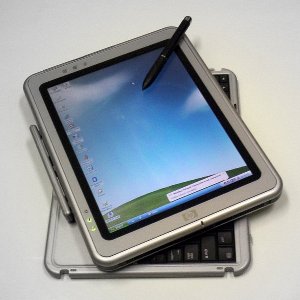
Tablets like iPad are the gaining popularity because they are handy and they are easily portable with
excellent user friendliness and applications.
 FuzeMeeting
 One of the best online conferencing and web meeting services for tablet. Using this app you can log onto webconferences,participate in discussions using IM or voice, view audio and video abd access data htat is being shared from a computer on their tablet.
Download- For ipad , For Android

Kindle
The e-book reader from Amazon works both on ipad and android tablets. You can read the ourchased books but the android users can browse the suscibed magazines and articles.
Download- For ipad , For Android

Zinio
Available for only ipad as per now. You can browse magazines through it with full colored images , even audio and video clips.

Photoshop Express
It's an adobe image tweeking software for tablets. You can edit images(crop, rotate, borders and effects etc).Download and Enjoy the applications.............
Tag :
Amazon,
Anderoi,
Computer,
Facts Shot,
Free Softwares,
Fuze Meeting,
IPad,
Kindle,
PC,
Photoshop,
Tablets,
Zino
How To With IPAD !!!!!!!!
Here are few tips to learn how to use the Apple IPAD.............

Press Home button and Power button for 15-20 seconds. The screen should appear.
Tap and open the folder. Now drag the icon out of the folder. Press Home button
to save changes.
Tap and hold your finger on the map for a couple of seconds. A pin will appear. Drag it to the point you want to mark.
Tap the pin, then tap Add to Bookmarks.
Open iTunes and connect iPad with the computer.
Quickly press and hold Shift + Control if you are using Windows PC and Command + Option if you are using Mac.
You can now always sync your iPad manually.
Select the Settings > Cellular Data > View Account.
This can also be done by:
Select Settings icon > Usage > See cellular network data.
If you’re using the second option here, you will have to manually reset the counter under Settings > Usage > Reset your usage statistics.

1- IPad Not Getting Turn On
It may happen that the IPad not getting started. You can try this:Press Home button and Power button for 15-20 seconds. The screen should appear.
2- Delete Apps From Folder
Tap and Hold the icon you want to delete. The icon will wiggle in sometime.Tap and open the folder. Now drag the icon out of the folder. Press Home button
to save changes.
3- Saving Location On Map
Open Maps and navigate to the area you wish to mark.Tap and hold your finger on the map for a couple of seconds. A pin will appear. Drag it to the point you want to mark.
Tap the pin, then tap Add to Bookmarks.
4- Disable Automatic Sync
By default, the iPad automatically syncs with the computer. You can change this.Open iTunes and connect iPad with the computer.
Quickly press and hold Shift + Control if you are using Windows PC and Command + Option if you are using Mac.
You can now always sync your iPad manually.
5- Check Data Usage
Just follow the path: Select the Settings > Cellular Data > View Account.
This can also be done by:
Select Settings icon > Usage > See cellular network data.
If you’re using the second option here, you will have to manually reset the counter under Settings > Usage > Reset your usage statistics.
How To With IPAD !!!!!!!!
Here are few tips to learn how to use the Apple IPAD.............

Check the Memory Used

Disable Automatic Syncing
By default, the iPad automatically syncs with iTunes when you attach it to your computer. You can disable this to manually sync whenever you want to.
1. Open iTunes.
2. Connect iPad to the computer.
3. Quickly press and hold Shift + Control for Windows PC or Command + Option for Mac.
You can always sync your iPad manually.
Battery Percentage Meter
If you want your iPad to show you what percentage of the battery is left, you can enable the feature in the top-right corner of the screen with these steps.
1. From the Home screen, tap Settings.
2. Choose General.
3. Choose Usage.
4. Switch Battery Percentage to On.
Now you will know how much power is left.
Check the Memory Used
Follow these steps:
1. Select the Settings icon.
2. Select Cellular Data.
3. Select View Account.
Alternately, you can also:
1. Choose the Settings icon.
2. Select Usage.
3. Select See cellular network data.
If you’re using the this option here, you will have to manually reset the counter under Settings > Usage > Reset your usage statistics.


 Posts
Posts


